
Emberwild / Getting Started
Installation
Choose your launcher and follow the steps below. You'll be exploring Emberwild in just a few minutes.
Choose your launcher
How do you want to play?
Install Modrinth
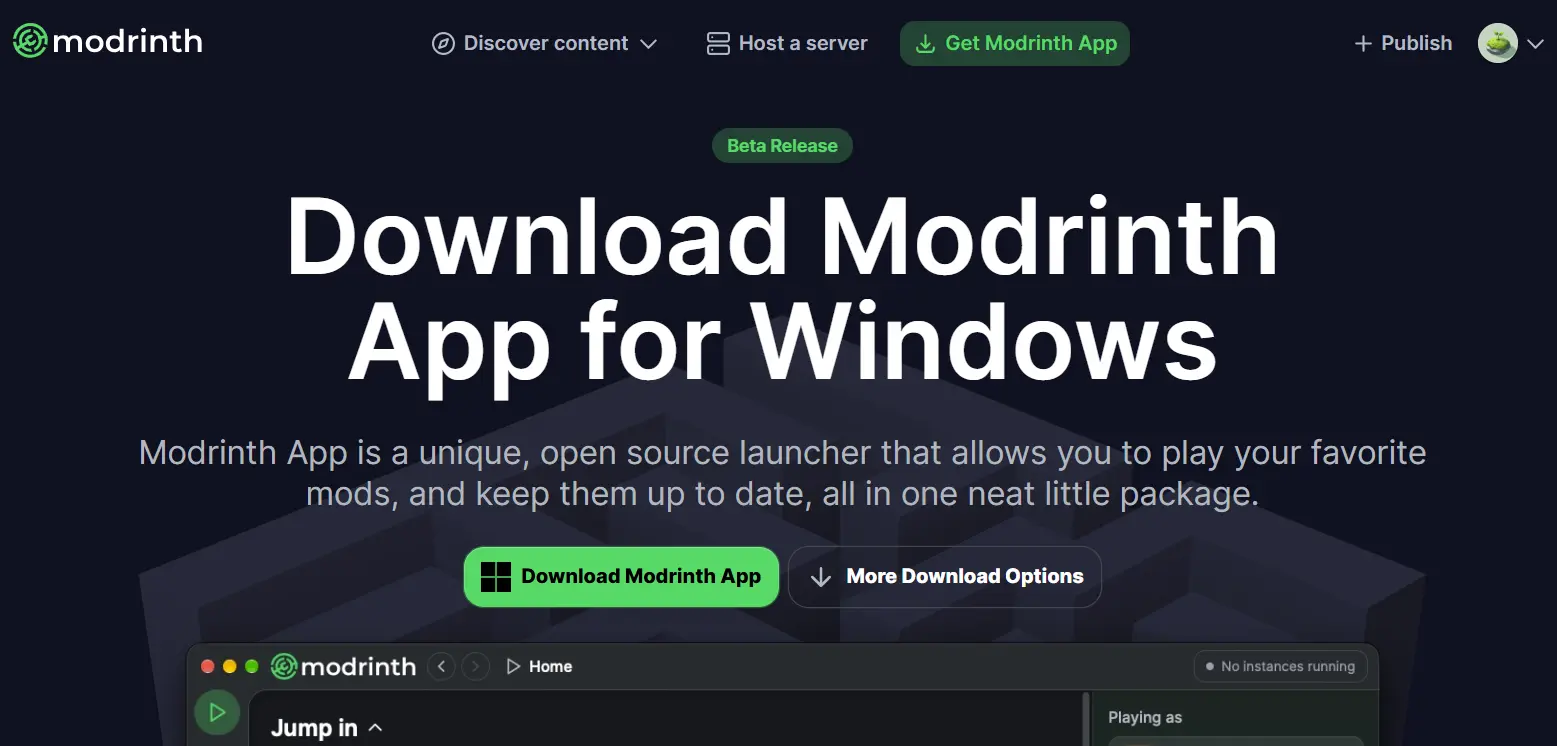
Before you can start your journey, you'll need the Modrinth App. It's a lightweight, open-source launcher that handles the heavy lifting for you.
Go to the official Modrinth download page.
Select Windows, macOS, or Linux.
Run the installer and follow the on-screen instructions.
Login to Minecraft
Once Modrinth is open, connect the Microsoft account that owns Minecraft Java Edition.
Profile
Find the User Profile icon in the Modrinth App.
Add Account
Choose Add Account and sign in with Microsoft.
Ready
Your Minecraft skin and username should appear.
Download Emberwild
Emberwild
Download the latest Emberwild modpack before continuing to the installation step.
Download ModpackInstall the Modpack
In Modrinth, create a new instance, choose the option to upload a modpack, then select the Emberwild modpack you just downloaded.
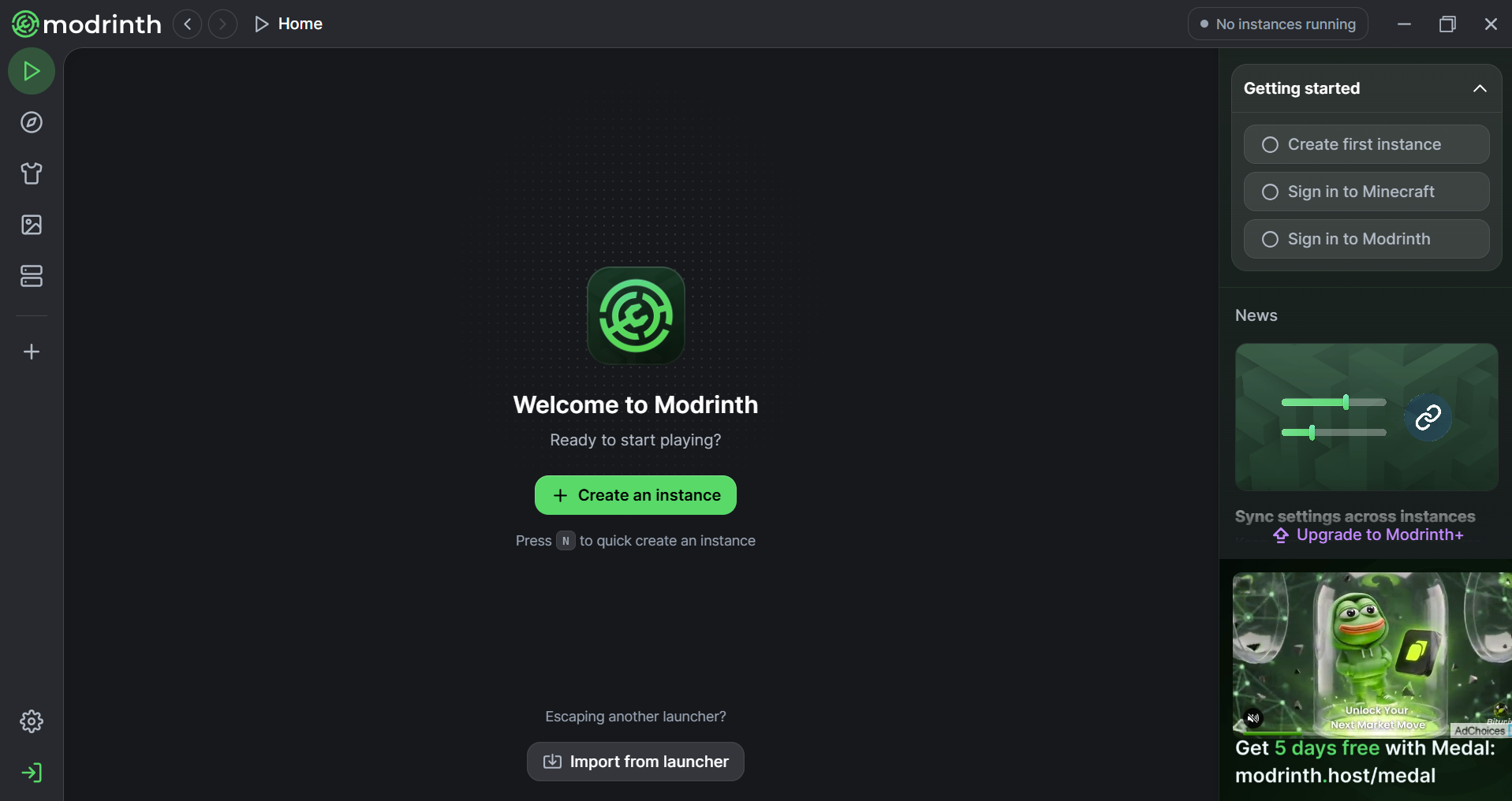
Create Instance
Click Create Instance inside the Modrinth App.
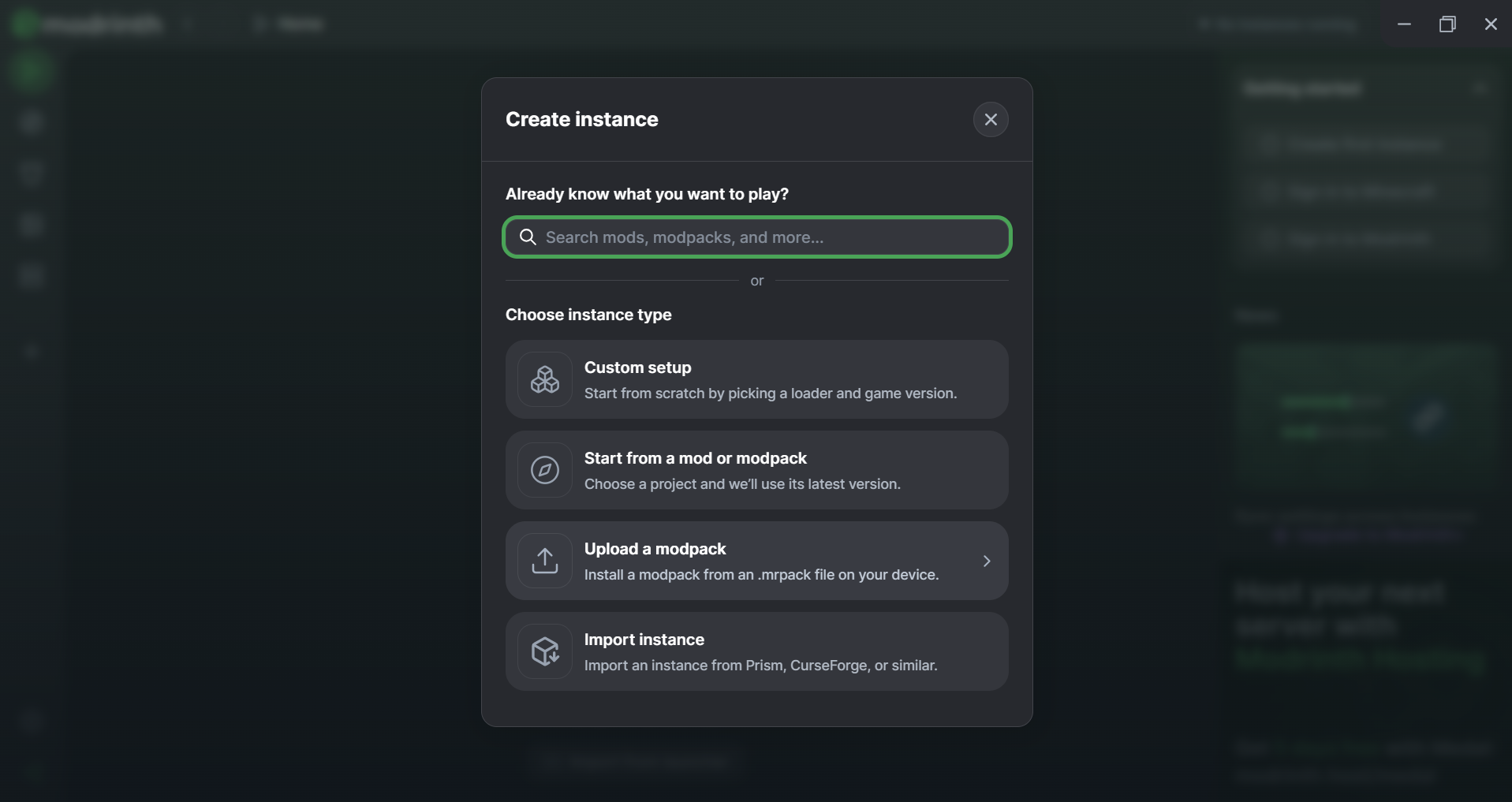
Upload a Modpack
Choose the option to upload a modpack.
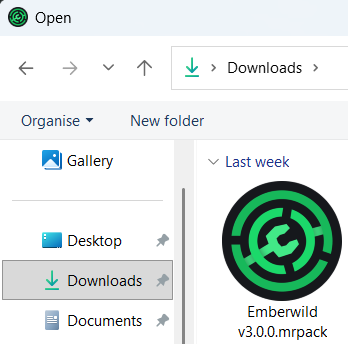
Choose Emberwild
Select the Emberwild modpack file you downloaded.
Launch Emberwild
Installation Complete
You're ready.
Go to the Home tab in Modrinth, find your Emberwild instance and press Play.
Back to Emberwild